
Post by Niranjan D
How I Built Helm, a Secure Android Remote for Windows PCs
Published · 7 min read
Helm is a free app by Niranjan D that turns an Android phone into an encrypted remote for a Windows PC. What it does, and how its Rust and Kotlin parts work.
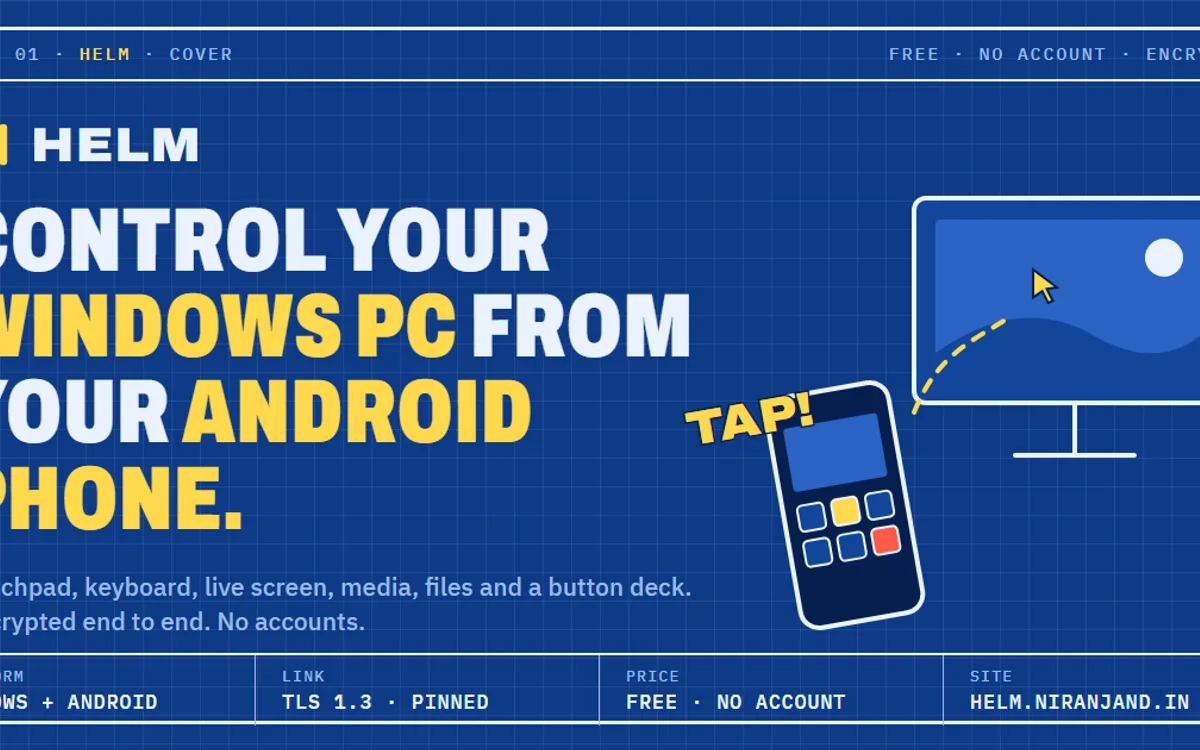
Picture the PC across the room. It is plugged into the TV, a film is playing, and you want to pause it, turn the volume down or open another app. Or you are in bed and realise you never shut it down. The keyboard and mouse are somewhere else. Your phone is in your hand.
Helm is a free app I built for exactly that moment. It turns an Android phone into a remote for a Windows PC. I'm Niranjan D, a full-stack developer and Artificial Intelligence & Data Science student in Chennai, and this post covers what Helm does, why I made it, and how it works underneath.
Why I built it
Before writing any code, I tried the apps that already let you control a PC from an Android phone. Every one did only one part of the job: one sent files, another gave you a touchpad, another a grid of buttons. And with some of them I could not tell whether what I typed was encrypted at all.
A remote that can type on your computer is a lot of power to hand to a phone. I wanted one app that did the whole job, and I wanted it to be safe by default.
What Helm does
Once your phone and PC are paired, the phone becomes:
- A launcher dock with your PC's apps and their real icons. Tap one and it opens on the PC.
- A touchpad and keyboard. The phone keyboard opens by itself when a text box on the PC is selected.
- A live view of the PC screen, which you can tap and control directly.
- A media remote: play, pause, skip, volume, plus sleep, lock and shutdown, each with a confirmation.
- A bridge for files and the clipboard, in both directions. Share a photo to "Send to PC", or copy text on one device and paste it on the other.
- A Stream Deck-style grid of buttons you set up yourself, for shortcuts, apps, scripts and multi-step macros.
There is no account to create and nothing to sign in to. Helm is free on both the PC and the phone.
Setting it up
Setup is three steps. Install Helm on the Windows PC, install the app on the Android phone, then tap Pair with QR on the phone and scan the code shown in the Helm window on the PC.
That single scan is the only time you prove the two devices belong together. After it, the phone reconnects on its own, even after a restart, with no PIN or password to type again.
How it works
Helm has two programs. The PC side is an agent written in Rust that talks directly to Windows: it launches apps, injects mouse and keyboard input, captures the screen, and reads media and system state. The phone side is a native Android app written in Kotlin with Jetpack Compose. The Windows app you install is a small Tauri 2 window and tray icon that runs the Rust agent inside the same process.
The connection between them looks like this:
Android app ──(mDNS: _helm._tcp)──▶ finds PC
            ──(scan QR: address + certificate fingerprint + one-time token)──▶ pairs
            ──(WebSocket over TLS, certificate pinned, device key signs a challenge)──▶ PC agent
In plain terms: the phone finds the PC on your home network, the QR code introduces them, and from then on they talk over an encrypted channel that only those two devices can open.
Pairing without a certificate authority
The usual way a device decides whether to trust a server is a certificate authority, the companies that vouch for websites. A PC in your living room has no such certificate, so Helm creates its own on first run (an ECDSA P-256 key) and keeps it.
The QR code carries a SHA-256 fingerprint of that certificate, along with a one-time token. When the phone connects, it does not ask anyone else whether the certificate is valid. It accepts the connection only if the certificate's fingerprint matches the one it scanned. This is called certificate pinning, and it replaces the usual hostname check. A different machine pretending to be your PC fails that comparison immediately.
The connection itself is TLS 1.3, the same encryption standard your bank's website uses. On top of that, each side proves who it is:
- The phone generates its own key pair inside Android Keystore, where the private key cannot be exported.
- On every connection the PC sends a fresh random value, and the phone signs a string of the form
helm-v1|auth|<host_id>|<nonce>with its key. The PC checks the signature against the key it saved at pairing. - The PC's own private key is encrypted with Windows DPAPI for the current user, so copying Helm's data folder to another machine does not copy its identity.
The pairing token is 32 random bytes, works once, and expires after five minutes. Five wrong tokens in a row lock pairing for a minute. This is trust on first pairing, done deliberately: the moment of trust is a QR code you scan with the PC in front of you, not something typed over the network.
Permissions, not just a password
Being connected is not the same as being allowed to do everything. Each phone gets one of three access levels: Viewer, Remote or Admin. Every command declares the minimum level it needs, and the PC rejects anything above the phone's level. Admin actions, such as power controls and the terminal, ask for your fingerprint on the phone first and are written to an audit log on the PC.
The live screen
Showing the PC screen on a phone, smoothly, was the hardest part to get right. The pipeline is:
- 1
Windows Graphics Capture grabs the screen on the PC.
- 2
The GPU's hardware H.264 encoder compresses it, through Windows Media Foundation.
- 3
The frames travel over a second authenticated connection, kept separate from the control commands.
- 4
The phone decodes them in hardware with Android's MediaCodec and draws them straight to the screen.
It is built for under 50 ms on 5 GHz Wi-Fi at up to 1080p and 60 frames per second, and the PC's sound can come along as Opus audio.
The difficult part is not speed on a good network but behaving well on a bad one. If frames pile up, the picture falls further and further behind what is really on the PC. So the agent keeps at most three video frames queued. Beyond that it drops frames that can safely be skipped, then asks for a fresh full frame once the queue drains, so the picture jumps back to the present instead of lagging. The phone reports what it received every second, and the agent lowers the bitrate by 20 percent when frames are being dropped and raises it by 10 percent after five healthy seconds.
Input is designed the same way. Touchpad movement goes as small fire-and-forget messages that never wait for a reply, and if the phone disconnects mid-drag, the agent releases any key or button that was held, so nothing gets stuck down.
Using it away from home
On the same Wi-Fi, the phone talks to the PC directly. Away from home, Helm can use USB tethering, Tailscale, or a relay: a small Cloudflare Worker that you deploy yourself. The PC keeps one outgoing connection to the relay, and the phone reaches it over mobile data.
The key decision is that the relay is not trusted. Each relayed connection is fed into the same TLS and pinning code as a connection on your home network, so the encrypted session runs from end to end and the relay only ever sees encrypted bytes. Pairing is refused over the relay entirely; it only ever happens with both devices on the same network.
Trade-offs I chose
Every design here costs something:
- Pinning instead of a certificate authority means there is no outside party to trust, but if you reset Helm's identity on the PC, the phone has to be paired again.
- No accounts means no cloud login and no server holding your data. It also means no sign-in to recover; the QR scan is the whole identity.
- The relay is something you deploy, not a service I run for you yet. That is more setup, but no server of mine sits between your phone and your PC.
- Updates are checked against GitHub Releases and verified by size, SHA-256 and an Ed25519 signature before anything is installed, and only when you choose to install them.
Building it in small steps
Helm went from a v0.1.0 preview on 31 October to v0.5.0 on 7 November: seven releases in eight days. The first did only discovery, QR pairing over pinned TLS and trusted devices. Later ones added the tray app, screen sharing, the phone as a Bluetooth mouse and keyboard, and in v0.5.0 flick scrolling, quick keys and a home-screen widget.
One habit made that pace possible. Every call the Rust agent makes to Windows goes through a single interface with a fake version for tests, so the suite runs real TLS end to end without ever moving the mouse or shutting down the machine it runs on.
Try Helm
Helm is free for Windows 10 and 11 PCs and Android phones running Android 8.0 or newer, with no account. You can download it and read the full docs at helm.niranjand.in.
My other apps and the rest of my work are on my portfolio at niranjand.in.
Topics
- Helm
- Android
- Windows
- Rust
- Kotlin
- Security